


A common requirement for report developers is the integration of images within dashboards. However, when using image links, these URLs must be accessible to the Power BI service. Many analysts naturally opt to host these images on a SharePoint site. However, SharePoint sites in most organizations are not public; they require authentication to access their content. This poses challenges when displaying these images in the Power BI service. In this article, we will delve into the issue and propose some solutions.
Table of contents
- Why aren’t my SharePoint images showing in Power BI Desktop, and why do they appear for some users in the Power BI service but not for others?
- Solution 1: Embedding the report in a SharePoint site
- Solution 2: Embedding images within your Power BI report
Why aren’t my SharePoint images showing in Power BI Desktop, and why do they appear for some users in the Power BI service but not for others?
As mentioned in the introduction, SharePoint sites typically require authentication for resource consumption, including image links. After the initial authentication, our browser stores a SharePoint session information to avoid re-entering credentials in subsequent interactions with SharePoint.
When using a SharePoint image in our report, Power BI sends a request to SharePoint to download the image content. Behind the scenes, our browser checks for an authenticated session with SharePoint. When making the image download request, it also “attaches” the authenticated session, enabling proper access.

Images may not display in Power BI Desktop because it cannot leverage the SharePoint session stored in your browser. When attempting to download images, SharePoint rejects the request due to unauthorized access. However, when you publish the report to the Power BI service in your workspace and access it via a browser, the images appear if you are already authenticated on the SharePoint site. The browser can now use the stored authenticated session, sending it in the request, and SharePoint validates the session, returning the image content.
For those who still cannot see an image even when accessing via a browser, it may be because their browser lacks an authenticated SharePoint session. Verify permissions on the images on Sharepoint, then open a new tab, access the SharePoint site in the same browser, authenticate, and return to the Power BI report, then press CTRL + F5 to refresh and display the images.
However, this solution may not be practical for a production report. Informing all report viewers about this procedure is cumbersome. If you have no alternative location for storing images other than SharePoint, the following sections will explore alternative solutions to overcome this issue.
Solution 1: Embedding the report in a SharePoint site
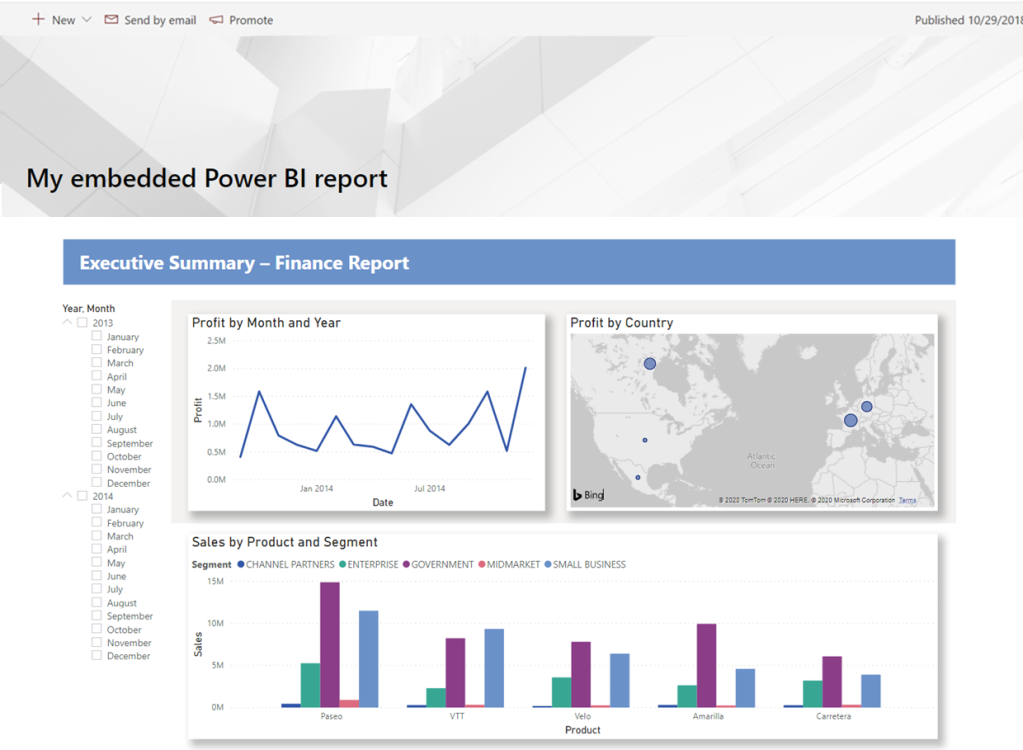
Consider embedding your Power BI report directly into a SharePoint site. This integration can help overcome the authentication challenges associated with accessing images stored in SharePoint. Embedding your Power BI report within a SharePoint page ensures that viewers will need to access a SharePoint page, authenticate themselves, and have their browser store the session. This guarantees that the images will always display, as the authentication process is seamlessly integrated into the SharePoint environment. We provide a step-by-step guide for implementing this solution in detail in this article.
Solution 2: Embedding images within your Power BI report
An alternative approach is to embed the images directly within your Power BI report. By doing so, you eliminate the need for external authentication when accessing SharePoint images. This involves importing the images into the Power BI report, ensuring they are part of the report file itself. This self-contained approach guarantees that users, regardless of their authentication status on SharePoint, can view the report along with its embedded images seamlessly. We provide a step-by-step guide for implementing this solution in detail in this article.




 Power BI Point
Leave a comment