


One challenge that report developers may encounter in certain scenarios is securing a public location to display their images. In corporate environments, hosting images on public websites is often not feasible, and solutions like storing them on private sites such as SharePoint, which require authentication, don’t integrate seamlessly with Power BI, as explained in the article provided in this link.
A viable solution to address this challenge is to embed images in the form of Base64-encoded text. In this strategy, the binary data of the image is converted into text and remains stored within your semantic model. This article will guide you through the implementation of this solution.
Table of contents
- Creating the base table
- Creating function to convert images to base64
- Invoking the function
- Creating a DAX measure to group chunks of the same image
Creating the base table
To begin, we need a foundational table containing the URLs of the images we intend to display. These URLs can originate from both web addresses and local folder paths. It is essential to have a single column with the URLs, as depicted in the image below:

Now, we need to download the binary content from these URLs. To do this, navigate to the “Add Column” section and select the “Custom Column” option.
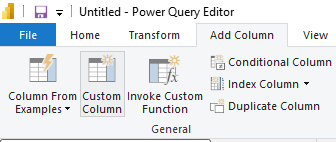
Name the new column “content.” In its formula, invoke the Web.Contents function, passing the column containing your URLs as a parameter. In my case:
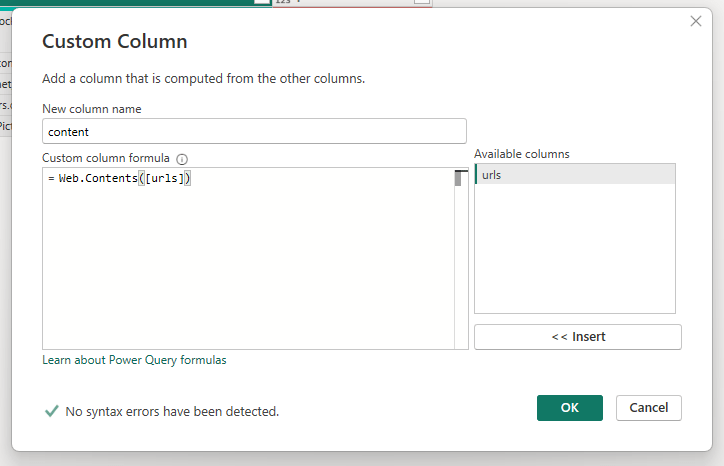
After creating the column, you may need to edit the credentials. Choose anonymous authentication and select Organizational for all privacy levels.


Creating function to convert images to base64
Let’s now create a function that will convert the binary content of these images into Base64. Click on “New Sources” > “Blank query“

Then, right-click on the created table and choose the “Advanced Editor” option.

In this editor, delete the existing code and replace it with the code below. Essentially, this code generates a function that expects the image binary as a parameter. This function will convert the binary into Base64 text and break it into various chunks. This step is necessary due to a limitation on the amount of text characters Power BI can store in a cell. To overcome this, we need to divide the content into multiple cells (chunks), or else our image would be cut off, restricted by the maximum characters of a cell.
let
    Source = (BinaryContent as binary) => let
        SplitTextFunction = Splitter.SplitTextByRepeatedLengths(30000),
        BinaryText = Binary.ToText(BinaryContent, BinaryEncoding.Base64),
        SplitText = SplitTextFunction(BinaryText),
        AddIndex = List.Generate(() => List.Count(SplitText) - 1, each _ >= 0, each _ -1, each { _, SplitText{_}}),
        FinalTable = #table(type table [imgOrder = number, base64 = text], AddIndex)
    in
        FinalTable
in
    Source
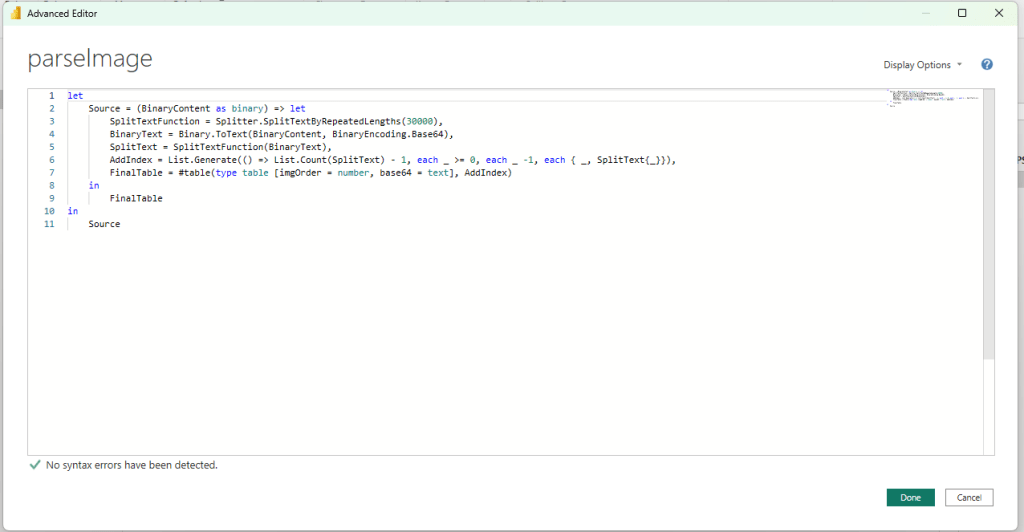
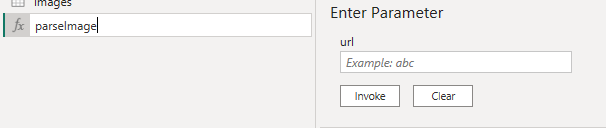
After applying the code change, rename our function to “parseImage“
Invoking the function
Now, back in our base table, click on the “Add Column” tab and choose the “Custom Column” option.

Name the new column “parser,” and in the formula, invoke the previously created function, passing the column with the binary images as a parameter: parseImage([content]).
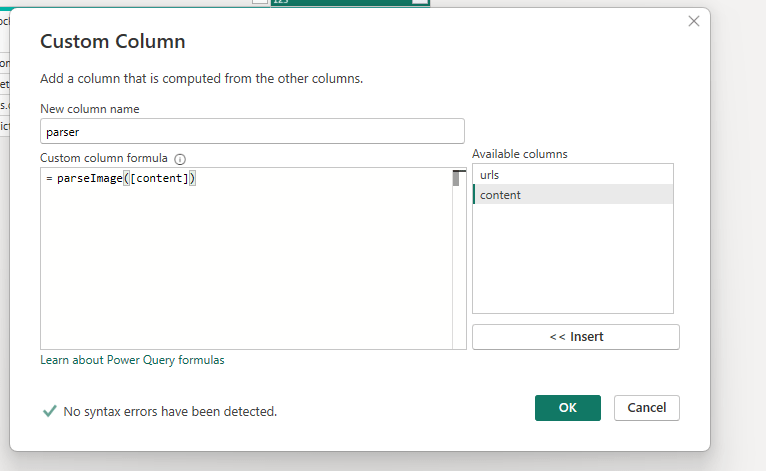
After clicking OK, you can delete the content column.
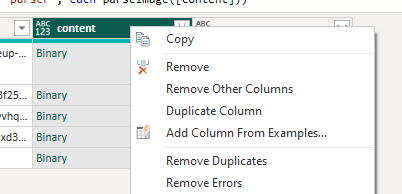
And click on expanding the parser column.
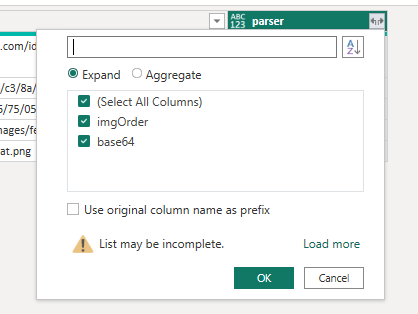
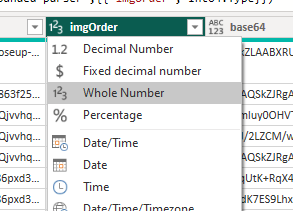
Change the data type of the imgOrder column to Whole Number and base64 to text

Now, you can close and apply the changes in Power Query.

Creating a DAX measure to group chunks of the same image
Finally, we need to create a DAX measure to aggregate the various chunks of an image and include the metadata type at the beginning of this string. The DAX measure should adhere to the format outlined below:
showImage = IF(HASONEVALUE(images[urls]),"data:image/jpeg;base64, " & CONCATENATEX(images, images[base64], , images[imgOrder], ASC))
After creating the measure, click on it and change the data category to “Image URL.”

Now, simply add a slicer with the image URLs:

Lastly, incorporate the new Power BI card visual, making some configurations to display only images

There you have it! The content of your images is now stored within your semantic model and no longer requires querying the source.


 Power BI Point
Leave a reply to Cathy Lammertijn Cancel reply